
Solution guide · Email deliverability
GoHighLevel sending domain not verifying? Why it fails and how to fix it
Why your GoHighLevel dedicated sending domain will not verify, what each DNS error means, and the exact records and steps to get LC Email verified.

Key takeaways
- A GoHighLevel sending domain verifies only when all five records it gives you (two TXT, two MX, one CNAME) are live at exactly the right host names with exactly the right values.
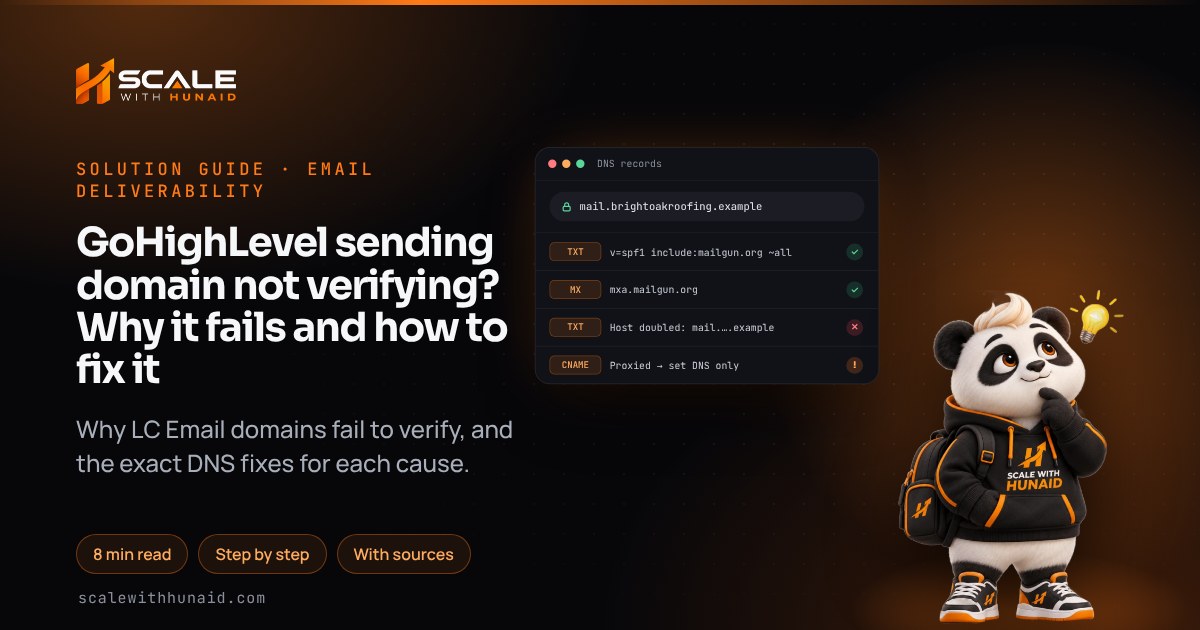
- The most common cause is a doubled host name: type only the prefix (such as mail) in the Host field, because most DNS providers add your domain automatically.
- On Cloudflare the CNAME must be set to DNS only (grey cloud); a proxied CNAME makes verification fail.
- Use a subdomain such as mail.yourdomain.com, never the root domain that already runs Google Workspace or Microsoft 365 mail.
- After verification, wait for SSL Issued; a domain stuck on SSL Pending breaks click, open and unsubscribe links.
When a GoHighLevel sending domain will not verify, HighLevel is telling you one thing: it looked up the DNS records it gave you and did not find all of them, at the right names, with the right values. It is nearly always a typing or DNS-host problem, not a HighLevel fault. Find the record that does not match, correct it, and click Verify again.
This guide explains how LC Email verification works, the error messages you may see, each common cause with its exact fix, how to check your records yourself, and what to do when the domain verifies but SSL sticks on Pending. It is the routine I follow when I set up sending domains as part of email and SMS deliverability work.
How GoHighLevel sending domain verification works
As of November 2026, you add a dedicated sending domain in the sub-account under Settings → Email Services → Dedicated Domain and IP (some screens say just “Dedicated Domain”). HighLevel then shows a DNS records screen. According to HighLevel’s manual DNS article, you add five records: two TXT records (one for SPF, one for DKIM), two MX records (mxa.mailgun.org and mxb.mailgun.org) and one CNAME record.
| Record | Host you type (for mail.yourdomain.com) | Value |
|---|---|---|
| TXT (SPF) | mail |
v=spf1 include:mailgun.org ~all |
| TXT (DKIM) | Copy from your screen (a selector + ._domainkey.mail) |
Unique key from your screen |
| MX | mail |
mxa.mailgun.org (priority as shown) |
| MX | mail |
mxb.mailgun.org (priority as shown) |
| CNAME | email.mail |
Tracking target from your screen |
The SPF value comes from HighLevel’s Cloudflare setup article. The DKIM record is unique to each account, so HighLevel says to copy it from your own DNS records screen, never from screenshots. The CNAME host is email. followed by your subdomain prefix, as shown in HighLevel’s setup guide. Once every record is found, HighLevel marks the domain verified and generates its SSL certificate automatically.
Fails
- Avoid: Full domain typed in Host
- Avoid: Cloudflare CNAME proxied
- Avoid: Two SPF records
- Avoid: Root domain with Workspace mail
- Avoid: DKIM value cut short
Verifies
- Do: Prefix only in Host
- Do: CNAME set to DNS only
- Do: One merged SPF line
- Do: Fresh mail subdomain
- Do: Full key, pasted once
The errors you may see and what they mean
Most people only see records with a red cross next to them. A few specific messages point straight at the cause.
| What you see | What it means | Go to |
|---|---|---|
| Records show unverified after 10+ minutes | A record is missing, misnamed or has the wrong value | Causes 1–4 |
| “Domain already pointing to email server!” | The name already has MX or SPF records for another service | Cause 5 |
| “Pre-existing record” error | A wildcard record (*.yourdomain.com) is answering for the name |
Cause 5 |
| “Request Failed”, domain already in Mailgun | The domain still sits in an old Mailgun account | Cause 6 |
| Connection blocked by a domain conflict | Another product or sub-account already uses the domain | Cause 6 |
| Verified, but SSL Pending or SSL Unknown | Certificate not issued yet; tracked links break | SSL section |
Cause 1: the host name is doubled
This is the one I fix most often. Most DNS providers add your domain to whatever you type in the Host or Name field. If you paste mail.yourdomain.com, the record ends up at mail.yourdomain.com.yourdomain.com. HighLevel names this exact failure: enter only the prefix.
Fix:
- Open your DNS provider and find every record you added for LC Email.
- Edit each Host/Name field so it holds only the part before your root domain:
mailfor SPF and MX,email.mailfor the CNAME, and the selector part (ending in._domainkey.mail) for DKIM. - For a root-domain setup, HighLevel says to use
@for the root records, and the CNAME host becomes justemail. - Save, wait a few minutes, and click Verify in HighLevel.
Cause 2: the Cloudflare CNAME is proxied
Cloudflare only proxies A, AAAA and CNAME records; MX and TXT are always DNS only. A proxied CNAME answers with Cloudflare’s addresses instead of the target HighLevel expects. HighLevel says proxying email CNAME records is not supported and will cause verification failure.
Fix:
- In Cloudflare, go to your domain → DNS → Records.
- Find the
email.mailCNAME and click Edit. - Switch Proxy status from Proxied (orange cloud) to DNS only (grey cloud) and save.
- Return to HighLevel and click Verify.
Cause 3: two SPF records on the same name
RFC 7208 is strict: if a name has more than one v=spf1 record, the result is a permanent error, so SPF fails for every receiver. HighLevel’s authentication article also says to keep only one SPF TXT entry per domain. Mailgun adds that an SPF value split across two TXT entries will not verify either.
Fix:
- Look up TXT records for the exact name you are verifying (see the checking section below).
- If you find two lines starting
v=spf1, delete one and merge its mechanisms into the other. Example:v=spf1 include:_spf.google.com include:mailgun.org ~all. - Keep the total of DNS-lookup terms (
include,a,mx,exists,redirect) at 10 or fewer, the limit in RFC 7208. - Better still, use a subdomain that has never had an SPF record, so the LC Email record sits on its own.
Cause 4: the DKIM key is cut short or mangled
The DKIM value is a long string. Copying it from a narrow screen, or pasting into a DNS host that limits TXT length, can cut off the end. Google’s DKIM troubleshooting page explains that a single TXT string is limited to 255 characters, so longer keys must be split into several quoted strings entered one after another, and it warns that some hosts change TXT values to lower case, which invalidates the key.
Fix:
- In HighLevel, use the copy button next to the DKIM value rather than selecting it by hand.
- Paste it into the TXT value field in one go, with no line breaks or extra spaces.
- If your host rejects values over 255 characters, split the key into chunks of up to 255 characters, wrap each in quotes and put them one after another in the same record, as Google describes.
- Look the record up and confirm the published key ends with the same characters as the one in HighLevel.
Cause 5: the name already has mail records, or a wildcard
If you see “Domain already pointing to email server!”, HighLevel says you must remove any existing MX or SPF records on that name, even HighLevel ones, before connecting it. The same article explains that a wildcard record such as *.yourdomain.com makes every subdomain look as if it already exists, which triggers a “pre-existing record” error.
Fix:
- Never put LC Email on a root domain that already receives mail. HighLevel warns that adding its MX records to a Google Workspace root domain breaks your existing email, because Workspace relies on its own MX records at the root.
- Delete the domain from HighLevel and add a fresh subdomain instead, such as
mail.yourdomain.comorreplies.yourdomain.com. - If the subdomain itself has old MX or SPF records (from a previous setup), delete them first.
- If you use a wildcard, either remove it temporarily, verify, and add it back, or create explicit records for the LC Email subdomain so they override the wildcard.
Cause 6: the domain is used in Mailgun or another sub-account
Agencies moving from their own Mailgun account to LC Email often hit a “Request Failed” message. HighLevel’s migration guide says to log in to Mailgun and delete the domain there so it can be used in LC Email. If another HighLevel product or sub-account already holds the domain, HighLevel’s conflict check blocks the connection and cannot be overridden.
Fix:
- Mailgun: log in, open the domain in your Mailgun domains list and delete it. Then add it in HighLevel again.
- Another sub-account: find where the domain is connected, remove it there, then add it to the right sub-account.
- If you cannot find where it is used, choose a new subdomain. It is quicker than chasing the old one.
How to check your records before clicking Verify
Do not keep clicking Verify blind. Check what the internet actually sees.
- Open Google Admin Toolbox Dig.
- Enter
mail.yourdomain.comand click TXT: you should see exactly onev=spf1 … include:mailgun.org …line. - Click MX: you should see
mxa.mailgun.organdmxb.mailgun.org. - Enter
email.mail.yourdomain.comand click CNAME: it should show the HighLevel target, not Cloudflare addresses. - Enter the full DKIM host (selector +
._domainkey.mail.yourdomain.com) and click TXT: the key should match HighLevel’s, end to end. - If a lookup returns nothing, search for the doubled name (
…yourdomain.com.yourdomain.com). If it appears there, you have Cause 1.
If every lookup is right but HighLevel still shows red, wait. HighLevel says to recheck values after about 10 minutes, and that some providers take much longer to apply changes.
Upper limits, not typical times; most records verify within minutes once they are correct.
Source: Mailgun DNS FAQ; HighLevel LC Email setup; Google Workspace MX help (as of November 2026)
Verified, but SSL is Pending
Verification is not the finish line. HighLevel’s SSL article says the certificate covers every link LC Email generates on your domain, including tracking, open pixel, click and unsubscribe links. Without it, recipients see errors instead of your page. The status shows as SSL Issued, SSL Pending or SSL Unknown.
Fix:
- Wait 15 to 30 minutes after verification; HighLevel says the certificate is usually issued within a few minutes.
- If it is still Pending, go to Settings → Email Services → Dedicated Domain and IP and click Verify Now next to the domain to trigger a reissue.
- Confirm the CNAME is DNS only on Cloudflare, then reverify.
- Send a test email to yourself and click a link and the unsubscribe link. Both should open with a padlock.
What fixed looks like: every record with a green tick, the domain marked verified, SSL Issued, and test links that open cleanly.
- 1Pick a fresh subdomainNot the root that receives mail.
- 2Type prefixes onlyYour DNS host adds the domain.
- 3Keep one SPF recordMerge includes into one line.
- 4Set CNAME to DNS onlyGrey cloud on Cloudflare.
- 5Check records in DigConfirm before clicking Verify.
- 6Wait for SSL IssuedThen test links and unsubscribe.
Next steps
If you would rather hand this over, I set up and verify sending domains, SPF, DKIM and DMARC as part of email and SMS deliverability, or inside a full GoHighLevel CRM setup. If your website domain is the one refusing to connect, that is a different set of records; see GoHighLevel domain not connecting. DNS rules are the same in every state, whether you are in Texas or Florida.

References
- How to Set Up a Dedicated Sending Domain (LC Email) — HighLevel Support Portal
- Manually Adding DNS Records for Dedicated Sending Domains — HighLevel Support Portal
- Email Authentication Errors - Fix SPF, DKIM, and DMARC Issues — HighLevel Support Portal
- Mailgun Setup - CloudFlare Domain Setup — HighLevel Support Portal
- SSL Certificates for Dedicated LC Email Domains — HighLevel Support Portal
- How to Migrate My Agency Over to LC - Email — HighLevel Support Portal
- Prevent Domain Connection Conflicts in HighLevel — HighLevel Support Portal
- DNS frequently asked questions — Mailgun Help Center
- Proxy status — Cloudflare DNS docs
- RFC 7208: Sender Policy Framework (SPF) — IETF / RFC Editor
- Troubleshoot DKIM issues — Google Workspace Admin Help
- Dig (DNS lookup) — Google Admin Toolbox
- Set up MX records for Google Workspace — Google Workspace Admin Help